Quick take
For most people, AirPlay is the fastest option from an iPhone, while Google Cast through Google Photos is the simplest option for Android and works from iPhone too. A compatible TV remote and casting app is useful when you also want to navigate menus, control playback, adjust volume, and type from your phone.
Your TV is not only for watching movies and streaming shows. Its large screen also makes it one of the best places to view vacation photos, family videos, and special memories.
In the past, showing photos on a television usually meant connecting a laptop with an HDMI cable, copying files to a USB drive, or setting up complicated media-sharing software. Today, you can display photos from an iPhone or Android phone on a Smart TV wirelessly in just a few steps.
This guide explains the easiest ways to show photos and videos on your TV, including AirPlay, Google Cast, Apple TV, Google Photos, and dedicated casting apps.
How to show iPhone photos on a TV with AirPlay
AirPlay lets you wirelessly send photos and videos from an iPhone or iPad to an Apple TV or an AirPlay-compatible Smart TV. Before starting, make sure your iPhone and TV are connected to the same Wi-Fi network.
- Open the Photos app on your iPhone.
- Select the photo or video you want to display.
- Tap the Share button.
- Scroll through the sharing options and select AirPlay.
- Choose your Apple TV or compatible Smart TV.
- Enter the code shown on your TV if requested.
The selected photo will appear on the television. You can swipe between photos on your iPhone while your TV follows along.
AirPlay or screen mirroring?
When you send an individual photo through AirPlay, the TV receives only the selected media. Your notifications, other apps, and the rest of your phone screen remain private. Screen mirroring displays almost everything visible on your iPhone, which can be useful when an app does not support direct AirPlay but may expose notifications or messages.
How to mirror an iPhone screen
- Connect the iPhone and TV to the same Wi-Fi network.
- Open Control Center.
- Tap Screen Mirroring.
- Select your Apple TV or AirPlay-compatible television.
- Enter the AirPlay code if one appears.
Before mirroring, consider turning on Focus mode or disabling notification previews to avoid displaying private messages on the TV.
How to show Android photos on a TV with Google Cast
Android users can display photos using Google Photos and a Chromecast, Google TV, or compatible Cast-enabled television. Google Photos casting also works from iPhone and iPad.
- Connect your phone and TV to the same Wi-Fi network.
- Open the Google Photos app.
- Select a photo, video, or album.
- Tap the menu or Cast option.
- Choose your Chromecast or compatible TV.
- Swipe between photos on your phone to change what appears.
Casting individual media is generally better than mirroring your entire screen because viewers see only the selected photos and videos.
Use a photo library or TV screensaver
View your complete photo library on Apple TV
For people who use iCloud Photos, Apple TV 4K offers a convenient photo-viewing experience. Its Photos app can display your iCloud photo library, albums, shared albums, videos, memories, and slideshows.
- Open Settings on Apple TV.
- Go to Profiles and Accounts and select the default profile.
- Select Photos and turn on iCloud Photos.
- Open the Photos app on Apple TV.
This avoids keeping your phone connected every time. Remember that signing into a personal iCloud Photos library on a shared TV may expose private content to other users.
Use Google Photos as your TV screensaver
Google TV and Chromecast devices can use selected Google Photos albums as an ambient screensaver. Open the settings for your Google TV or Chromecast, find Ambient Mode or Screensaver, select Google Photos, choose your albums, and save the changes.
Create a separate album specifically for the TV rather than selecting your entire photo library. This gives you control over which images appear when the television is idle.
Display photo memories
Apple Photos and Google Photos can create collections from trips, people, dates, and special occasions. They may combine photos, short video clips, transitions, music, location information, and dates. Open a memory and use AirPlay or Google Cast when supported.
Cast photos with a TV remote app
Built-in casting features do not provide the same experience on every Smart TV. Some TVs may not support AirPlay; others may have unreliable mirroring, complicated menus, or limited support for photo formats.
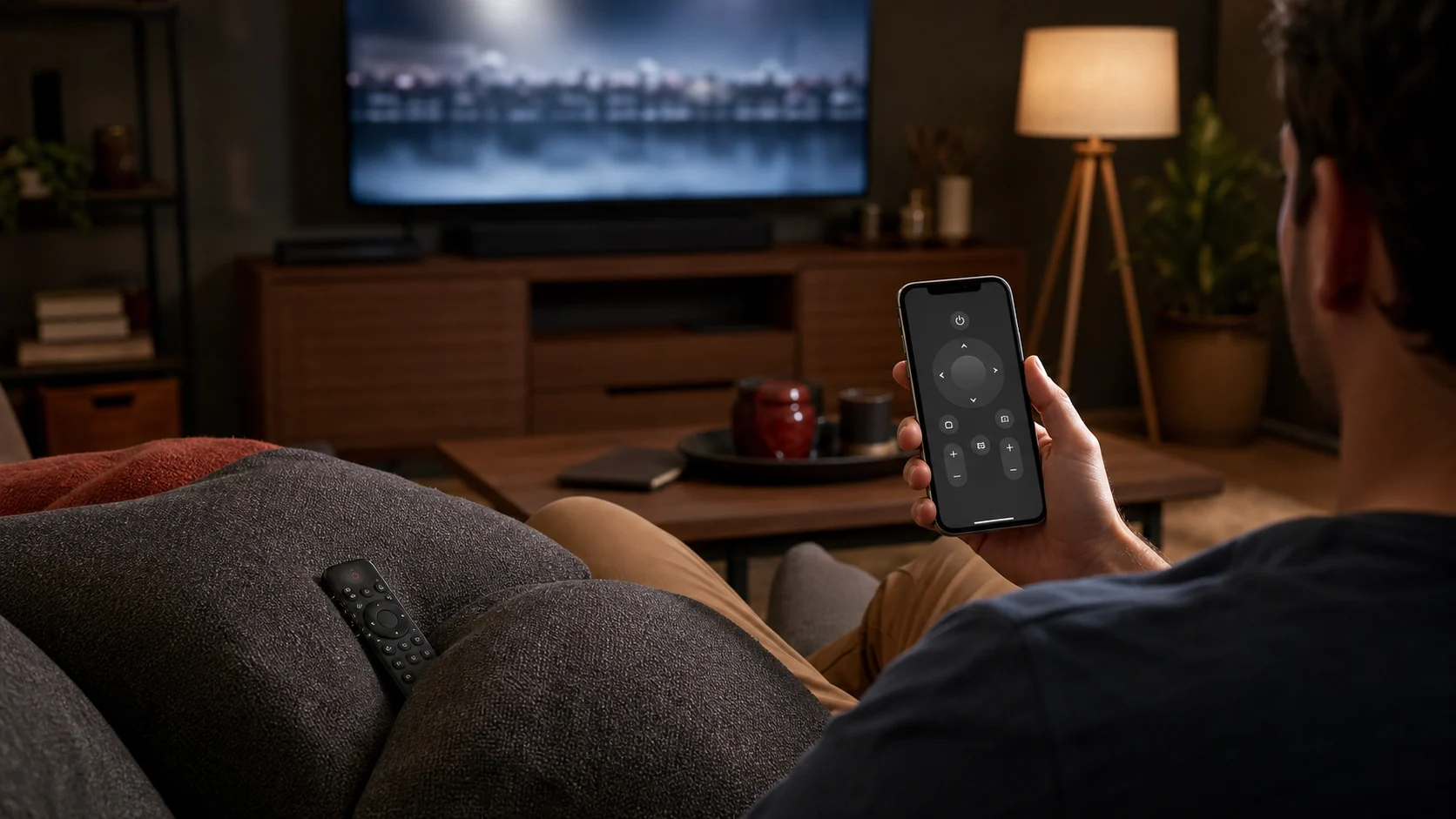
A TV remote and casting app can combine television controls and media casting in one place. With TV Remote Control: Xio, you can connect an iPhone or iPad to a compatible Smart TV over Wi-Fi and use your phone to:
- Cast photos to the television.
- Play supported videos.
- Navigate TV menus and control playback.
- Adjust the volume and use a touchpad.
- Type with the iPhone keyboard.
- Open supported TV applications.
For the best connection, keep the phone and TV on the same Wi-Fi network and allow the app to access local network devices when iOS requests permission.
Prepare your photos before showing them
Create a dedicated album containing only the photos and videos you want to display. This avoids accidentally displaying private photos, repeated or blurry images, screenshots, downloaded images, or unrelated content.
- Italy Vacation 2026
- Family Celebration
- Best Photos of the Year
- Wedding Highlights
- Children’s Memories
- Nature Photography
A curated album usually creates a better experience than opening the complete camera roll.
What to do when your TV does not appear
When your television does not appear in the AirPlay or Cast device list, work through these checks:
- Confirm Wi-Fi: the phone and television usually need the same local network. A guest network may block discovery.
- Turn off mobile data temporarily: this can show whether the issue is related to the local network.
- Restart both devices: restart the TV and phone, then restart the Wi-Fi router if needed.
- Enable AirPlay or casting: check Connections, Network, AirPlay Settings, Apple AirPlay and HomeKit, Chromecast Built-in, or Screen Mirroring in TV settings.
- Check local network permission: on iPhone, go to Settings → Privacy & Security → Local Network and allow the casting app.
- Disconnect other casting sessions: stop any existing session before trying again.
- Update TV software: older TV software may contain AirPlay, Chromecast, or discovery problems.
Can you show photos without Wi-Fi?
Yes, but the options are more limited. You can copy photos to a USB flash drive and connect it directly to the TV, or connect a phone, tablet, or laptop with a compatible HDMI adapter. These methods help when the TV is not smart, Wi-Fi is unavailable, the TV does not support AirPlay or Google Cast, or wireless casting is unstable.
Which method should you choose?
- Use AirPlay when you have an iPhone or iPad, an AirPlay-compatible TV, and want to show selected media.
- Use Google Cast when you use Google Photos or have Android, Google TV, or Chromecast. It supports both Android and iPhone.
- Use the Apple TV Photos app when your library is in iCloud and you want albums, slideshows, and memories without casting each time.
- Use Ambient Mode when you want selected Google Photos albums to appear automatically.
- Use a TV remote and casting app when you want casting, navigation, typing, and playback controls together.
Frequently asked questions
Can I cast photos from an iPhone to an Android TV?
Yes. Depending on the TV, you may be able to use AirPlay, Google Photos with Google Cast, or a compatible third-party casting app.
Do I need an Apple TV to use AirPlay?
Not always. Many modern Smart TVs include AirPlay support. Check your TV specifications or settings to confirm compatibility.
Can people see my notifications while I cast photos?
When you cast an individual photo, viewers usually see only the media. Complete screen mirroring may also show notifications and other screen activity.
Can I cast photos without uploading them to the cloud?
Yes. AirPlay, screen mirroring, and many local casting apps can send photos over your home network without requiring cloud upload.
Can I use my TV as a digital photo frame?
Yes. Apple TV can show photos through its screensaver and Photos features, while supported Chromecast and Google TV devices can display selected Google Photos albums in Ambient Mode.
Final thoughts
Viewing photos on a television no longer requires cables, USB drives, or complicated media servers. iPhone users can send photos through AirPlay, while Android and Google Photos users can use Google Cast. Apple TV and Google TV can also display cloud photo libraries, memories, and selected albums.
Before inviting everyone to watch, create a dedicated album, connect your phone and TV to the same Wi-Fi network, and choose direct media casting instead of complete screen mirroring whenever privacy matters.
Make photo casting easier from your phone.
TV Remote Control: Xio brings remote buttons, touchpad navigation, keyboard input, app shortcuts, and media casting to iPhone and iPad over the same Wi-Fi network.
See TV Remote Control: XioThis independent guide provides general setup information. AirPlay, Google Cast, Apple TV, Google TV, and Google Photos are trademarks of their respective owners. Compatibility and available features vary by TV model, operating system, app, and region.
More TV guides