Quick take
An iPhone can replace many everyday functions of a physical remote on a compatible smart TV. You gain a rechargeable device that is easier to find, plus touchpad navigation, familiar keyboard input, app shortcuts, and media casting where the TV supports them. Keep the original remote nearby for initial setup, network problems, and troubleshooting.
The traditional TV remote has been part of our living rooms for decades. Although televisions have become smarter, faster, and more connected, the way we control them has not changed much.
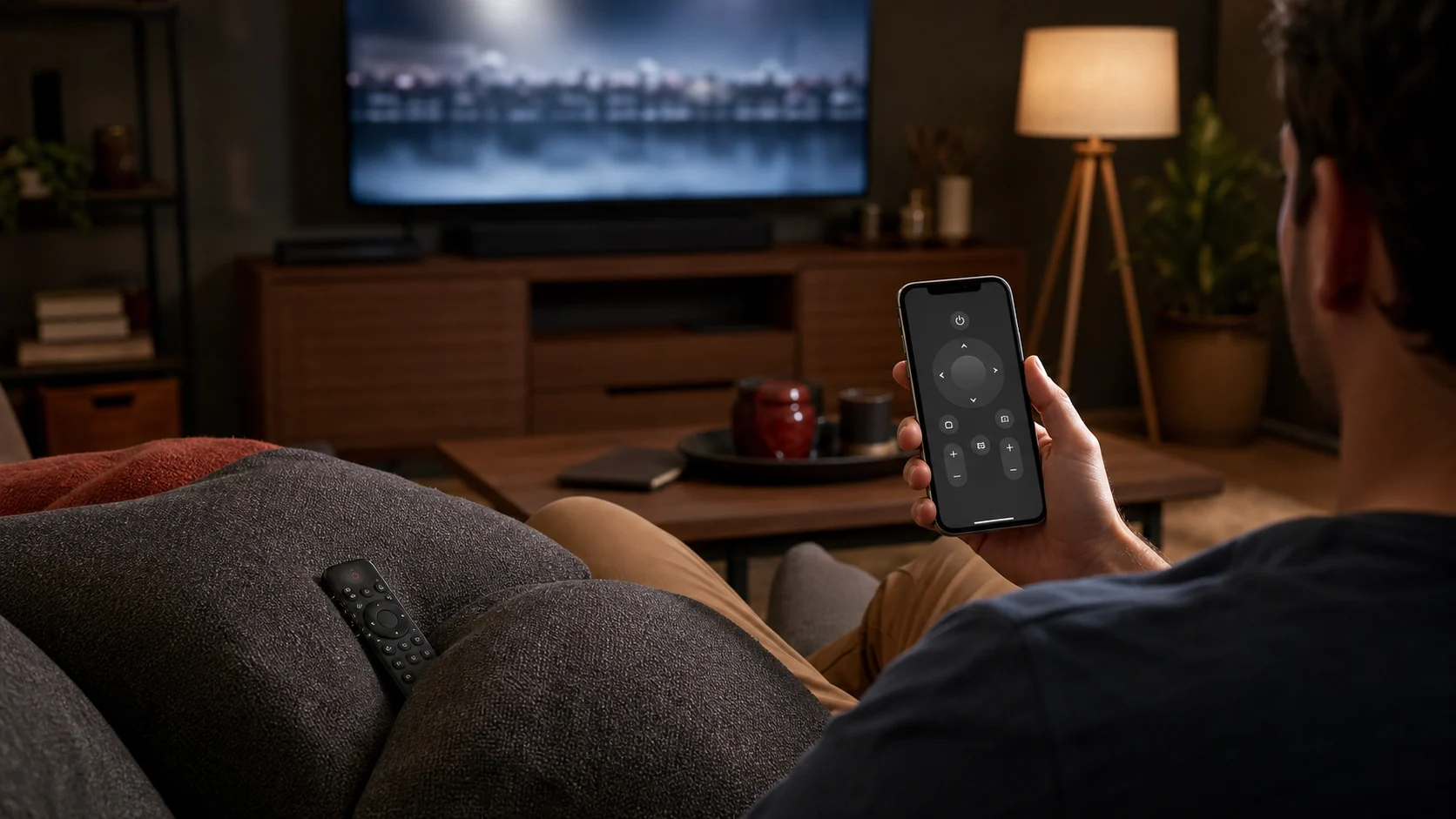
Physical remotes still get lost between sofa cushions, run out of batteries, stop responding, and make typing unnecessarily difficult. Fortunately, an iPhone can provide a more convenient way to control a compatible smart TV.
With an iOS remote-control app such as TV Remote Control: Xio, your iPhone or iPad can become a practical remote for compatible smart TVs, including supported Android TV and Google TV devices.
The most common problems with traditional TV remotes
A physical remote may look simple, but it often creates small frustrations that interrupt the viewing experience.
1. The remote is always getting lost
It may be under a cushion, beside the bed, in another room, or in the hands of another family member. Sometimes, you spend more time searching for the remote than choosing what to watch.
Your iPhone is usually much easier to find. It is often already in your hand, pocket, or nearby while you are watching TV. Using your phone as a TV remote means you do not have to search the entire room whenever you want to change the volume or open an app.
2. Physical buttons wear out
Traditional remotes are used every day. Over time, their buttons can become sticky, unresponsive, difficult to press, physically damaged, or hard to read. The most frequently used buttons—such as power, volume, navigation, and confirmation—are usually the first to develop problems.
An iOS remote app uses your iPhone’s touchscreen, so there are no physical remote buttons to wear out. The on-screen controls remain clear without requiring you to replace the entire remote.
3. Batteries die at the worst time
A remote often stops working when you need it most. You press a button several times, point the remote directly at the TV, and only then realize that the batteries are dead.
Your iPhone already has a rechargeable battery and displays its remaining charge clearly. Using it as a remote removes the need to keep disposable remote batteries nearby.
4. Typing with a TV remote is painfully slow
Searching for a movie, entering a Wi-Fi password, or signing in to an account usually requires moving across an on-screen keyboard one letter at a time. A simple search can take several minutes.
On supported televisions and text fields, an iOS remote app can provide keyboard input directly from your iPhone. Instead of selecting every character with arrow buttons, you can type naturally using the familiar iOS keyboard.
- Search YouTube and other video apps.
- Find movies and TV shows.
- Enter usernames and passwords.
- Search inside supported streaming apps.
5. Traditional navigation feels outdated
Many smart TV interfaces contain large menus, content rows, settings, and streaming applications. Navigating these interfaces with four directional buttons can feel slow and restrictive.
A touchpad gives you a more natural way to move around the TV interface. With TV Remote Control: Xio, you can use your iPhone screen as a touchpad on compatible smart TVs. Swiping and tapping can feel faster than repeatedly pressing directional buttons.
6. Opening favorite apps takes too many steps
A traditional remote may include shortcuts for a few streaming services. Those buttons are fixed and may promote apps you do not use. Without a useful shortcut, you must return home, open the apps section, find the app, and launch it.
An iOS remote app can provide direct shortcuts for supported services, depending on the connected TV and installed applications. This can help you reach your favorite content more quickly.
7. Every device has a different remote
Many homes contain more than one television. Each TV may have a separate remote with a different design and button layout. Managing several physical remotes quickly becomes confusing.
A phone-based remote can keep supported televisions available in one place. After connecting and saving a TV, you can select it from the app instead of searching for its specific physical remote.
How an iOS TV remote app works
Most modern smart TV remote apps communicate with the television through the local Wi-Fi network. Your iPhone or iPad and TV normally need to be connected to the same Wi-Fi network.
The app searches for compatible televisions and lets you select the device you want to control. Depending on the TV, you may also need to approve a pairing request or enter a code displayed on the television.
After pairing, your iPhone may be able to:
- Navigate through menus.
- Confirm a selection or go back.
- Control playback and volume.
- Enter text.
- Open supported applications.
- Cast supported photos and videos.
The exact controls available can vary by TV model, operating system, network configuration, firmware, and installed apps.
More than a replacement remote
A good iOS remote app should not simply copy the buttons of a physical remote. It should take advantage of the features already available on an iPhone.
TV Remote Control: Xio is designed for iPhone and iPad owners with compatible smart TVs, including supported Android TV and Google TV devices. It combines essential remote controls with features that are difficult to provide through a traditional remote.
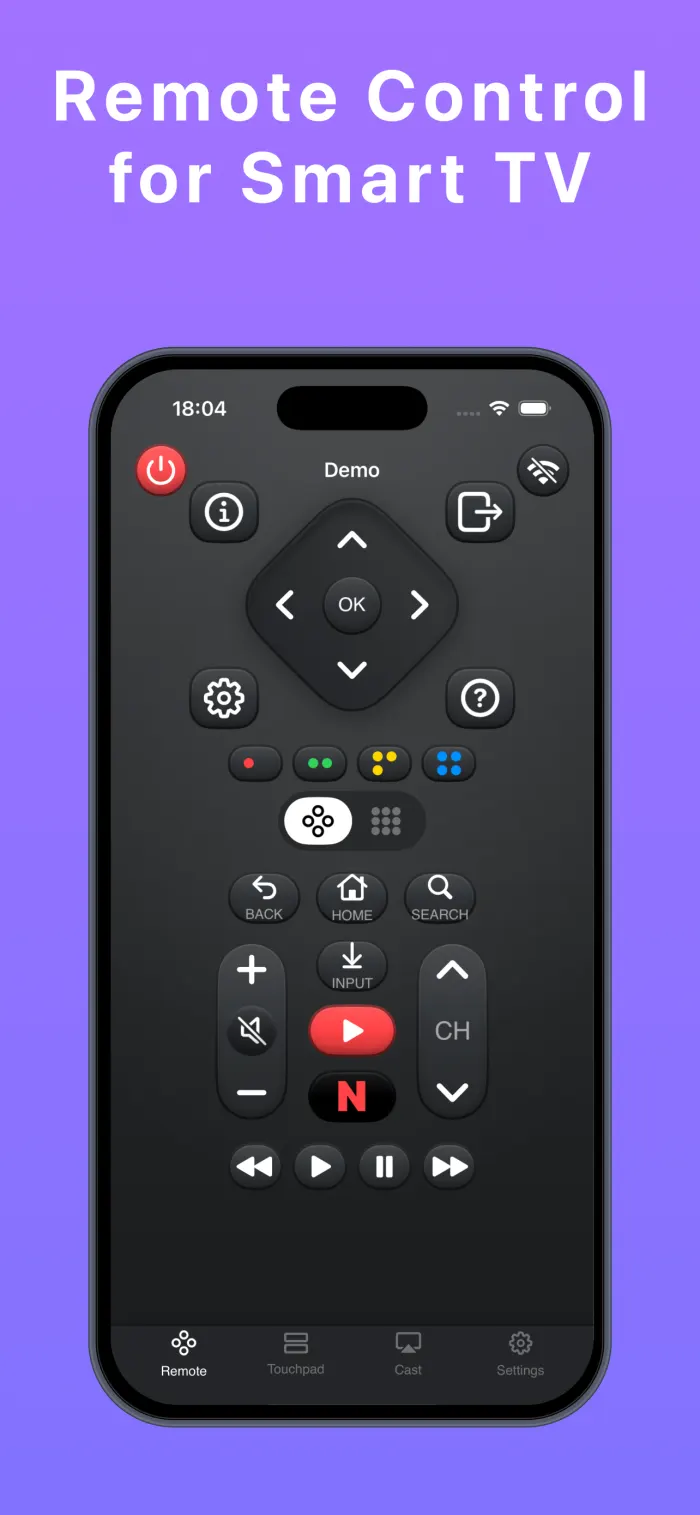
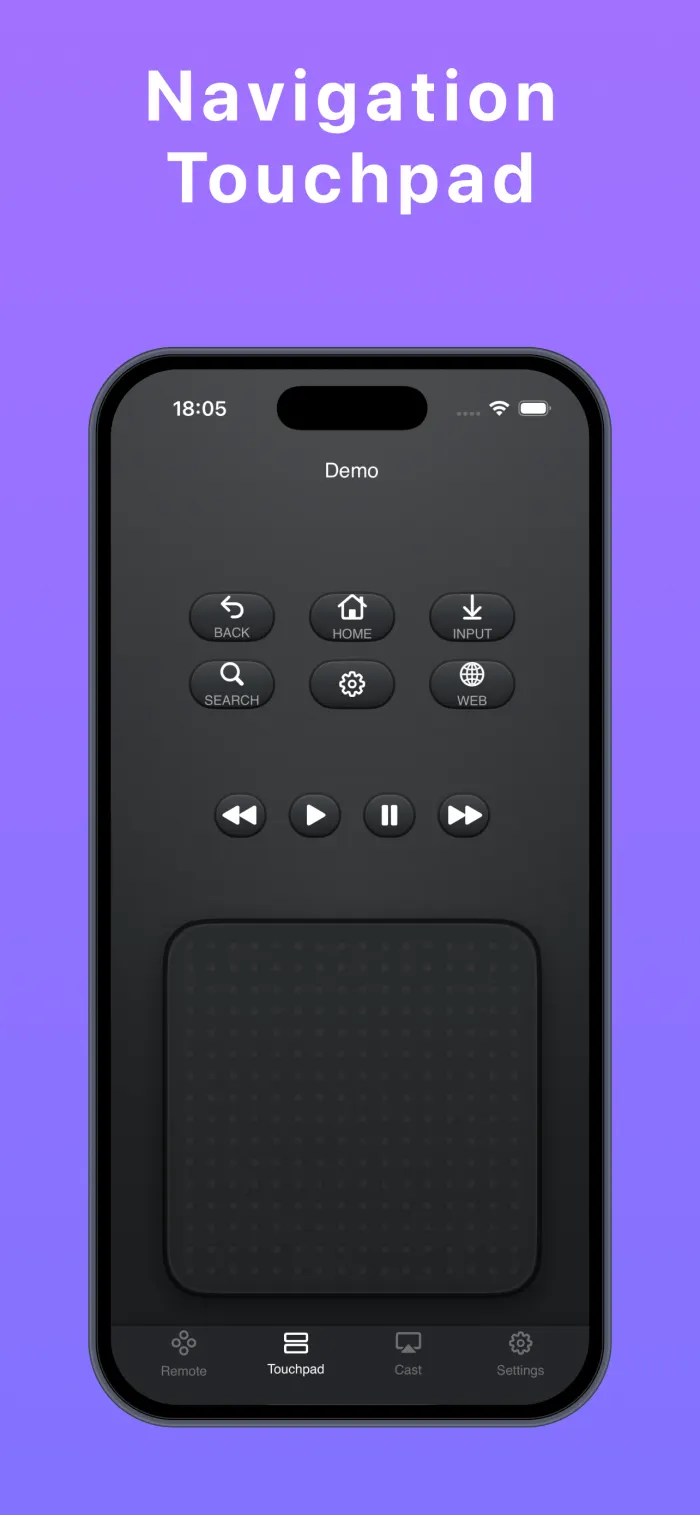
Touchpad navigation
Use gestures on your iPhone screen to move through supported TV menus more comfortably.
iPhone keyboard
Type searches and other text using the familiar iOS keyboard instead of navigating a TV keyboard letter by letter.
App shortcuts
Open supported streaming and TV applications without manually browsing through multiple menus.
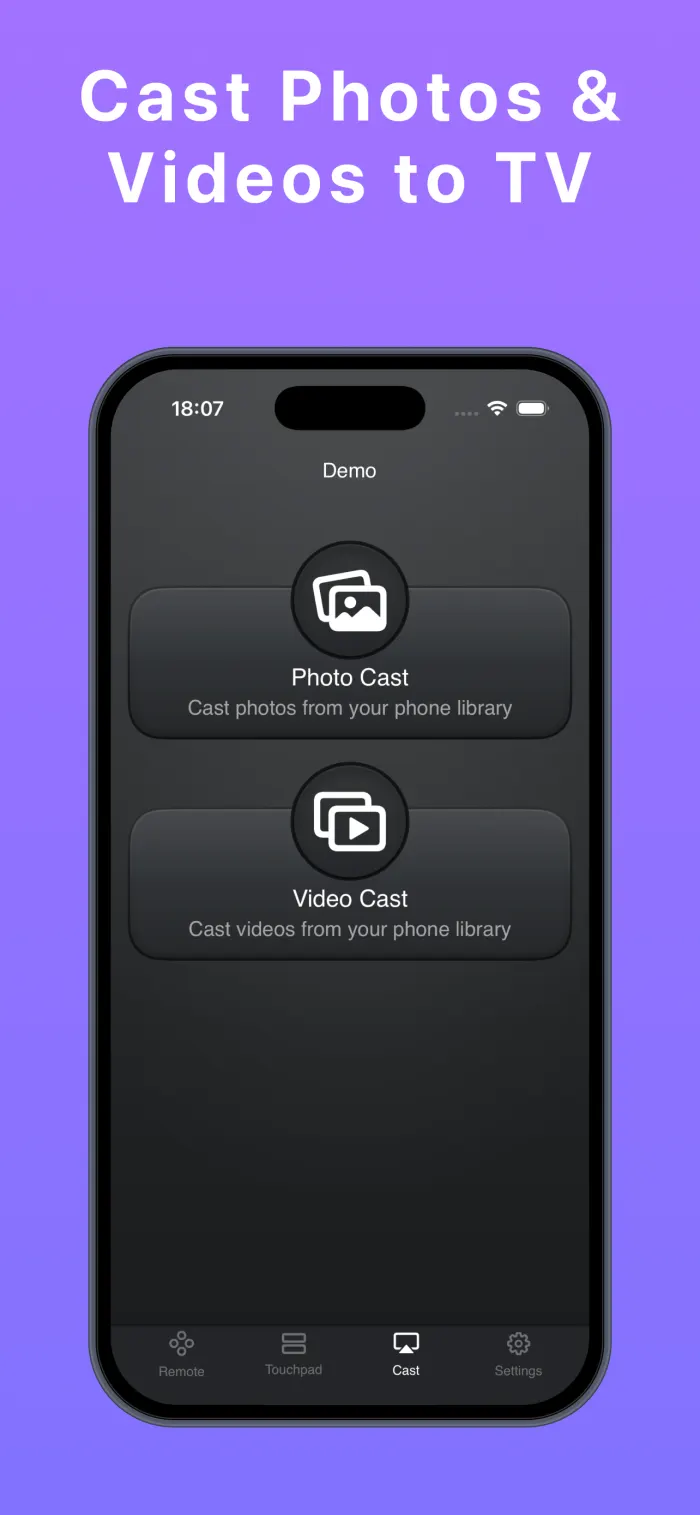
Photo and video casting
Send supported photos and videos from your iPhone or iPad to your TV for a larger viewing experience.
Saved TV connections
Save compatible televisions in the app so reconnecting can be easier the next time you want to use the remote.
Can an iPhone completely replace a physical remote?
For everyday controls, an iPhone remote app can often handle many of the actions normally performed with a physical remote.
However, keeping the original remote nearby may still be useful. Some televisions require the physical remote during initial setup, network configuration, troubleshooting, or when the TV is completely disconnected from power or Wi-Fi.
Use your iPhone as the remote you reach for every day, and keep the original remote as a backup.
What you need before getting started
Before connecting your iPhone to your television, check the following:
- Your television is compatible with the remote app.
- Your iPhone or iPad and television are on the same Wi-Fi network.
- The TV is switched on and connected to the network.
- You approve any pairing request displayed on the TV.
- Your network allows local devices to communicate with each other.
TV not appearing in the app?
Some guest Wi-Fi networks, VPN configurations, router privacy settings, or disabled Local Network permission on iPhone can prevent device discovery.
A smarter way to control your TV
Televisions have changed dramatically, but traditional remotes still create many of the same old problems. They get lost, require batteries, wear out, and make typing or navigating smart interfaces unnecessarily difficult.
Your iPhone already offers a touchscreen, keyboard, rechargeable battery, and familiar interface. Using it as a TV remote brings those advantages to your television.
With touchpad navigation, keyboard input, app shortcuts, saved televisions, and media casting, TV Remote Control: Xio offers a more convenient way to control compatible smart TVs from an iPhone or iPad.
Ready when the physical remote is not.
Download TV Remote Control: Xio for iPhone and iPad from the App Store.

Frequently asked questions
Can I use my iPhone as a TV remote?
Yes. You can use an iPhone as a remote for compatible smart TVs by installing a supported remote-control app and connecting both devices to the same Wi-Fi network.
Does the app work without Wi-Fi?
Network-based remote controls normally require the iPhone and television to be connected to the same local Wi-Fi network.
Can I type on my TV using my iPhone?
On supported televisions and text fields, an iOS remote app can allow you to enter text using the iPhone keyboard.
Can I control more than one television?
TV Remote Control: Xio can save multiple compatible TVs, allowing you to choose the television you want to control.
Does it work with every TV?
No. Compatibility depends on the television’s operating system, model, firmware, network settings, and supported control protocols.
Where can I download TV Remote Control: Xio?
You can download TV Remote Control: Xio from the Apple App Store.
Compatibility and available commands vary by television model, operating system, firmware, network configuration, and installed applications. TV Remote Control: Xio is an independent app and is not affiliated with or endorsed by Apple or any television manufacturer.
More practical guides